BIM viewer toolbar with navigation, measurement, and section tools
· v0.2.0
Navigating and interrogating a 3D BIM model used to mean relying on the viewer's default controls, with no quick way to measure distances, cut a section through the building, or walk through the space.
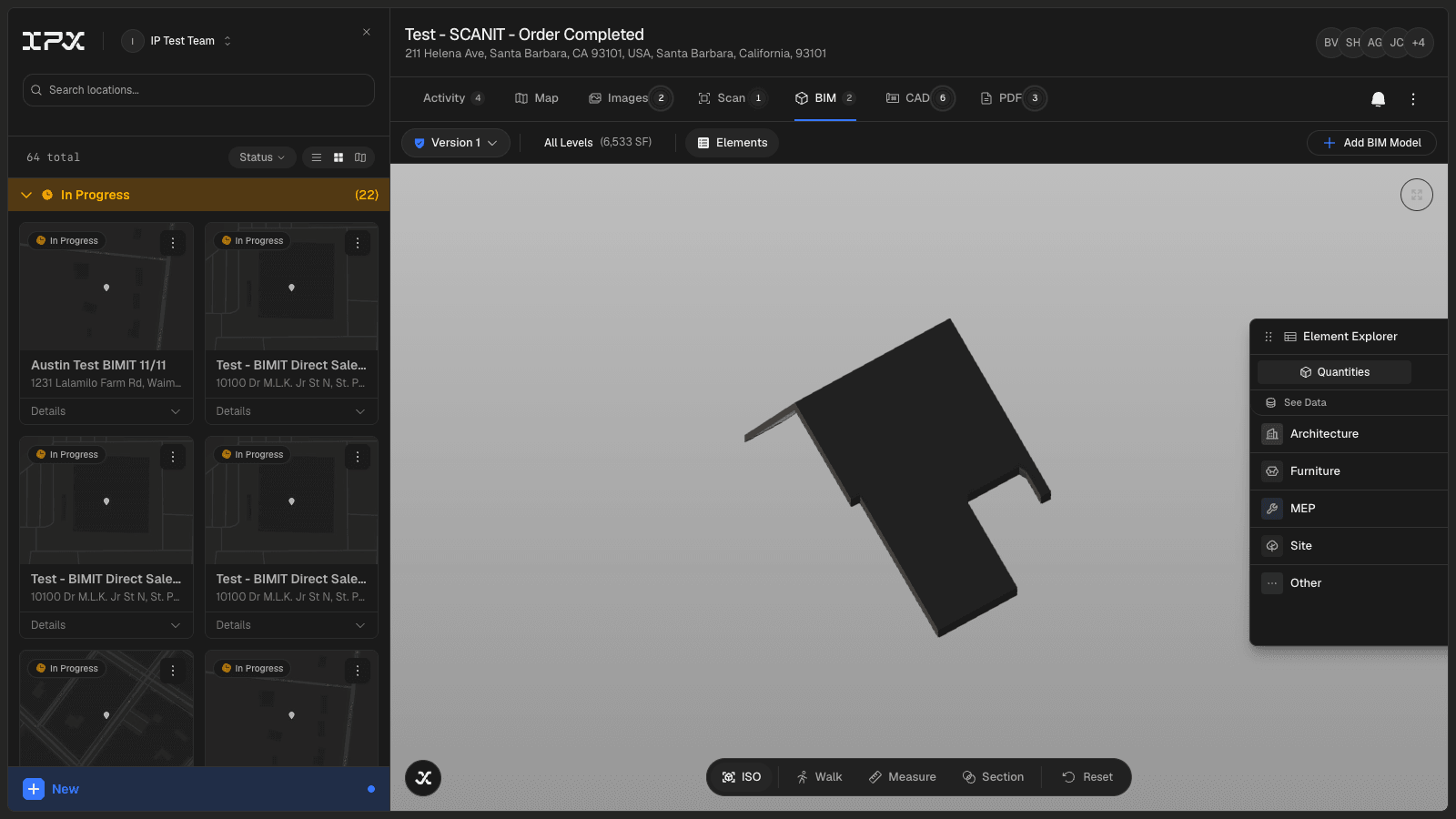
A floating toolbar now appears at the bottom center of the BIM viewer whenever you have a model open. It gives you four tools in one place, each accessible with a single click.
ISO / Perspective toggle switches the camera between isometric and perspective projection. Use isometric when you need to compare distances across the model without depth distortion; switch to perspective when you want a more spatial, true-to-life view.
Walk mode puts you into first-person navigation. Use WASD keys and your mouse to move through rooms and corridors at floor level — useful for walking a space before a site visit or reviewing clearances room by room.
Measure tool lets you click two points anywhere on the model to see the distance between them. Toggle between feet and imperial or metric units using the FT / M switch in the toolbar, and use Clear to reset and start a new measurement. Only one measurement is active at a time.
Section tool lets you drag a cutting plane through the model to expose interior geometry — useful when you need to look inside a wall assembly, check floor-to-floor heights, or review MEP routing without the surrounding structure in the way.
Only one tool can be active at a time. Activating a second tool automatically deactivates the first.
Alongside the toolbar, two other improvements arrive with this release. The Element Explorer now includes a Site scope, covering site elements such as topography, planting, and parking. Site elements render in a neutral off-white to distinguish them visually from the modeled building. Look for the Tree icon in the scope selector to find it.
Level data in the Levels popover is also more reliable. The viewer now reads level information from a broader set of model properties — including "Reference Level" and "Base Constraint" — so the popover reflects actual building levels rather than returning an incomplete list for models where level data was stored under a non-standard property name.